 All Yono
 All Yono App Permissions Explained: What's Normal and What Isn't
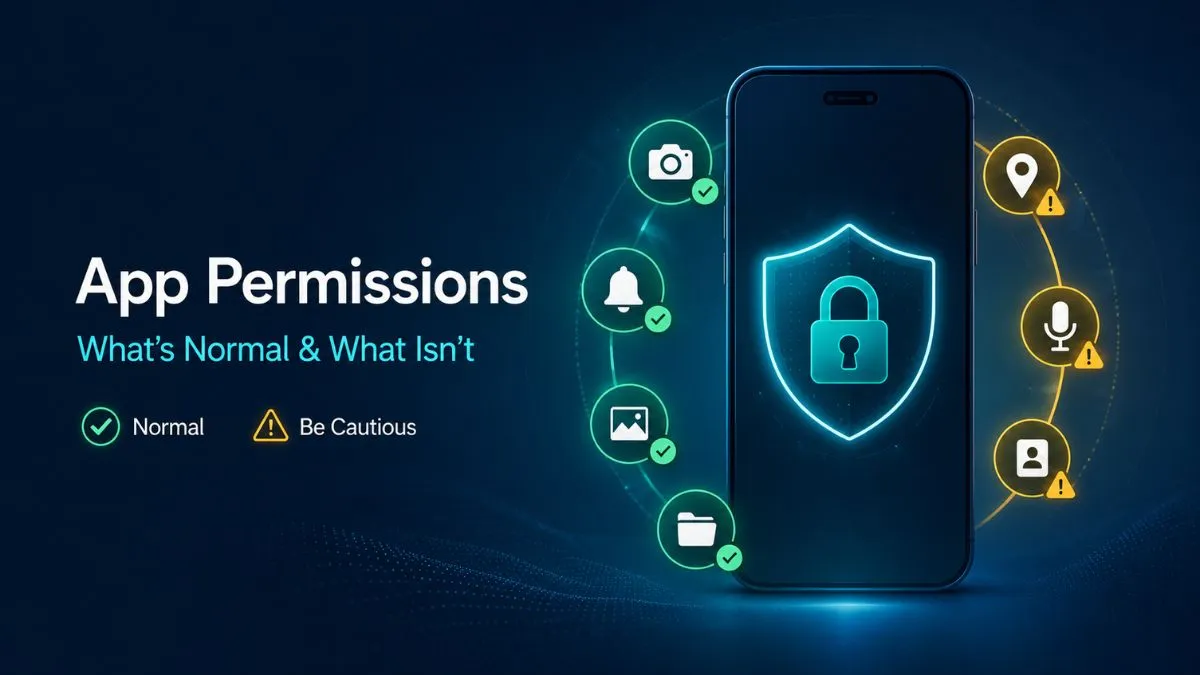
Before granting access to any Android app, pause for a second and read what it is asking for. All Yono app permissions should match a feature you understand and have chosen to use. A request is not automatically unsafe because it appears on your screen, but it should always have a clear purpose.
For instance, camera access can make sense when you choose to upload an image or scan something. Notification access may be useful if you want updates. But a request to control accessibility settings, install other apps, read all device files, or appear over other apps needs much closer attention.
This is especially important with APK files installed outside a standard app store. All Yono APK permissions can vary by version, publisher, and source, so there is no single permission list that should be trusted without question. The safer approach is to understand what each request allows and decide whether it fits the action you are taking.
There Is No "Automatic Allow" Permission List
A legitimate Android app should request the minimum access it needs for a specific feature. Android's own guidance recommends that apps connect a permission request to the action a user is taking, explain the reason clearly, and continue working where possible if optional access is denied.
That means you should be cautious when an app asks for many permissions immediately after opening. A request made without context is harder to evaluate. It does not automatically prove that something is wrong, but it gives you a reason to slow down.
The most useful question is simple:
If the answer is unclear, choose "Don't allow" first. You can usually enable the permission later through Android Settings if you decide the feature needs it.
Common Android Permissions and When They May Make Sense
Some permissions are normal in the right context. The permission itself matters, but the timing and explanation matter too.
| Permission | When It May Be Reasonable | What to Review |
|---|---|---|
| Notifications | Updates, alerts, or messages you choose to receive | This should be optional and can usually be enabled later. |
| Camera | Uploading an image, scanning a code, or document capture | It should be requested only when you use a camera-related feature. |
| Photos and videos | Selecting a profile image, receipt, or document | Prefer access to selected files instead of your entire gallery. |
| Microphone | Voice support or an audio feature | It should not be needed for ordinary browsing or account use. |
| Location | A location-based feature you actively use | Avoid "Allow all the time" unless location is essential. |
| Contacts | Choosing to connect with someone from your address book | This is usually optional and deserves a clear explanation. |
| Phone or SMS | A very specific phone-related service | Treat this as high-scrutiny access unless the purpose is obvious. |
Android now gives more detailed control over certain permissions, including options such as allowing access only while using the app. On many devices, you can choose a limited option for location, camera, or microphone instead of giving permanent access.
Permissions That Need Extra Scrutiny
Some requests go beyond normal feature access. These are often listed under "Special app access" or similar wording in Android Settings.
Accessibility Access
Accessibility services are meant to help people interact with their devices through tools such as screen readers, switch controls, or voice control. Because an accessibility service can inspect screen content and interact with other apps on a user's behalf, it should only be enabled when there is a clear accessibility-related reason.
Be cautious when an unfamiliar app tells you to enable accessibility access just to continue. Do not approve it because a pop-up says it is required without explaining exactly what the setting does.
Install Unknown Apps
This setting allows a browser, file manager, or another app to install APK files from outside Google Play. Android requires the user to actively opt in before installation from these sources can happen.
Only enable this setting when you have independently checked the file source and understand why installation is necessary. Once finished, turn the permission off again for that browser or app.
Display Over Other Apps
Also called screen overlay access, this lets an app place content on top of other apps. It can be used for practical functions such as chat bubbles or accessibility tools, but it can also interfere with what you see while using your device.
An app should give a direct, understandable reason before requesting this type of special access. If the request appears unrelated to the feature you are using, deny it and review the app carefully.
Notification Access
This is different from allowing an app to send you notifications. Notification access can allow an app to read or manage notifications from other apps.
That is a powerful setting. A standard app should not need it unless it provides a clear feature that depends on managing notification content. If the explanation is vague, keep the permission disabled.
Full File Access
Android can allow an app to access selected photos, videos, or documents. That is different from broad access to files across your device.
An app may reasonably need one file you choose to upload. It should not automatically need access to every stored file. Google's permission policies also state that access to sensitive data should be necessary for an app's core purpose.
Is This App Permission Normal? Use This Four-Part Check
When you see a permission pop-up, do not rush. Read the wording and connect it to what you were doing.
First, look at the feature. Did you just tap "Upload photo," "Scan," or "Use location"? If yes, the request may be connected to that action. If you only opened the app and it suddenly asks for contacts, microphone, storage, and location, that is less convincing.
Second, check whether the app explains why it needs access. A clear explanation should be specific. "Camera access is needed to upload a document" is more useful than "Allow access for a better experience."
Third, choose the least access available. For photos, select only the file you want to share where Android offers that option. For location, use approximate or "while using the app" access unless a more precise level is genuinely needed.
Fourth, remember that denying a permission is not permanent. Most Android permissions can be reviewed or changed later, so there is no need to approve everything immediately.
How to Review Permissions Already Granted
You can check permissions even after installing an app. On many Android devices, open:
Settings → Apps → Choose the app → Permissions
You can then see what access is allowed, denied, or unused. Another route on many newer Android versions is:
Settings → Security & privacy → Privacy → Permission manager
From there, you can review which apps can access your camera, microphone, location, contacts, photos, and other categories. Android's Help guidance confirms that permissions can be changed individually through these settings.
It is also worth checking apps you no longer use. Android may automatically reset sensitive permissions for unused apps after a period of inactivity, but you should still review older installations yourself.
What to Do if a Permission Feels Wrong
Start by denying the request. Then close the app and check where the file came from. Look closely at the source, app name, publisher information, spelling, and whether the installation process asked you to disable Android protections.
Keep Google Play Protect enabled. Google states that Play Protect checks apps for potentially harmful behaviour, including apps installed from other sources, and may warn users or deactivate harmful apps.
When an app requests unusual settings such as accessibility access, overlay permissions, SMS access, or unknown-app installation without a clear reason, remove the permissions and consider uninstalling the app. For a broader checklist, read our guide on how to spot a fake All Yono app scam.
A Sensible Permission Approach
You do not need to approve every pop-up to use an Android app safely. Start with the minimum access needed. Allow camera or media access only when you actively use a related feature. Keep broader permissions disabled unless you fully understand why they are necessary.
The goal is not to be afraid of every permission request. It is to make informed choices. Android app permissions safety comes down to context, clarity, and control. When a request makes sense, you can approve it with confidence. When it does not, stopping first is the better decision.
For more context on the different app sections users may encounter, visit the All Yono Games guide.
FAQs
What permissions are normal for an Android app to request?
Permissions that match a specific feature you are using, such as camera access for uploading a photo or location access for a location-based feature. A clear request should explain why it is needed and should not appear for several unrelated features at once.
Which permissions deserve extra scrutiny?
Accessibility access, installing unknown apps, displaying over other apps, full notification access, and broad file access are listed under special access in Android and should only be enabled when the reason is clear and specific.
Can I use an app after denying a permission?
Often yes. Many permissions are optional, and a well-built app should continue working with reduced functionality. You can usually revisit and grant the permission later from Android Settings if needed.
How do I check which permissions an app already has?
Open Settings, then Apps, choose the app, then Permissions. Or open Settings, then Security & privacy, then Privacy, then Permission manager, to review and change access for each app.
What should I do if a permission request feels wrong?
Deny the request, close the app, and review the source it was installed from. Keep Google Play Protect enabled, and consider removing the app if it pressures you to accept unclear or unrelated permissions.
Does All Yono India request any of these device permissions?
No. All Yono India is an informational directory website and does not request camera, microphone, contacts, accessibility, or file-access permissions through this site.